Defiant GLSL Studio Pro
Every word, tab, slider and panel in the studio, what it does, and how the shows stitch shaders together. Nothing here needs to be memorised — the Help word in the strip opens this page whenever you need it.
1Start here
The studio is one page that plays the shaders in the GLSL/ folder next to it.
It renders with WebGL2, grades the picture in float, and can layer a kaleidoscope, a
colour-key mask, a particle field, a text playlist and an image over the shader before the
final grade. Everything ships inside this folder: no Python, no Node, no network at run
time.
Three ways to open it
Served — the site
Open /studio.html on the site. The folder is read live from
GLSL/ through GLSL/manifest.php, and Upload, New folder,
Rename, Move, Delete, Save show and the bundle rebuild all write to disk. This is how
the subdomain runs it.
Served — the launcher
startmac.sh, startlinux.sh or startwin.bat starts
the static server that ships in bin/server/ and opens
studio.html. Same live folder, no PHP needed.
Direct — file://
Double-click studio.html. The files come from
bin/glsl-bundle.js instead of the folder, so every shader still appears and the
folders can still be browsed. Anything that has to write to disk asks for the launcher; the
status line says so.
All three run the same page; the difference is only where the shader list and file writes come from. A browser with WebGL2 (current Chrome, Edge, Firefox or Safari) is the one hard requirement. A trial runs for 30 minutes and the strip counts it down; a licence replaces the count with the plan.
2The screen
The window is three columns under one strip. The strip holds the words, the tree sits on the left, the picture takes the middle, and the right quarter is one of three tabs. Columns only ever take a quarter each, so the viewer is always the largest thing on screen.
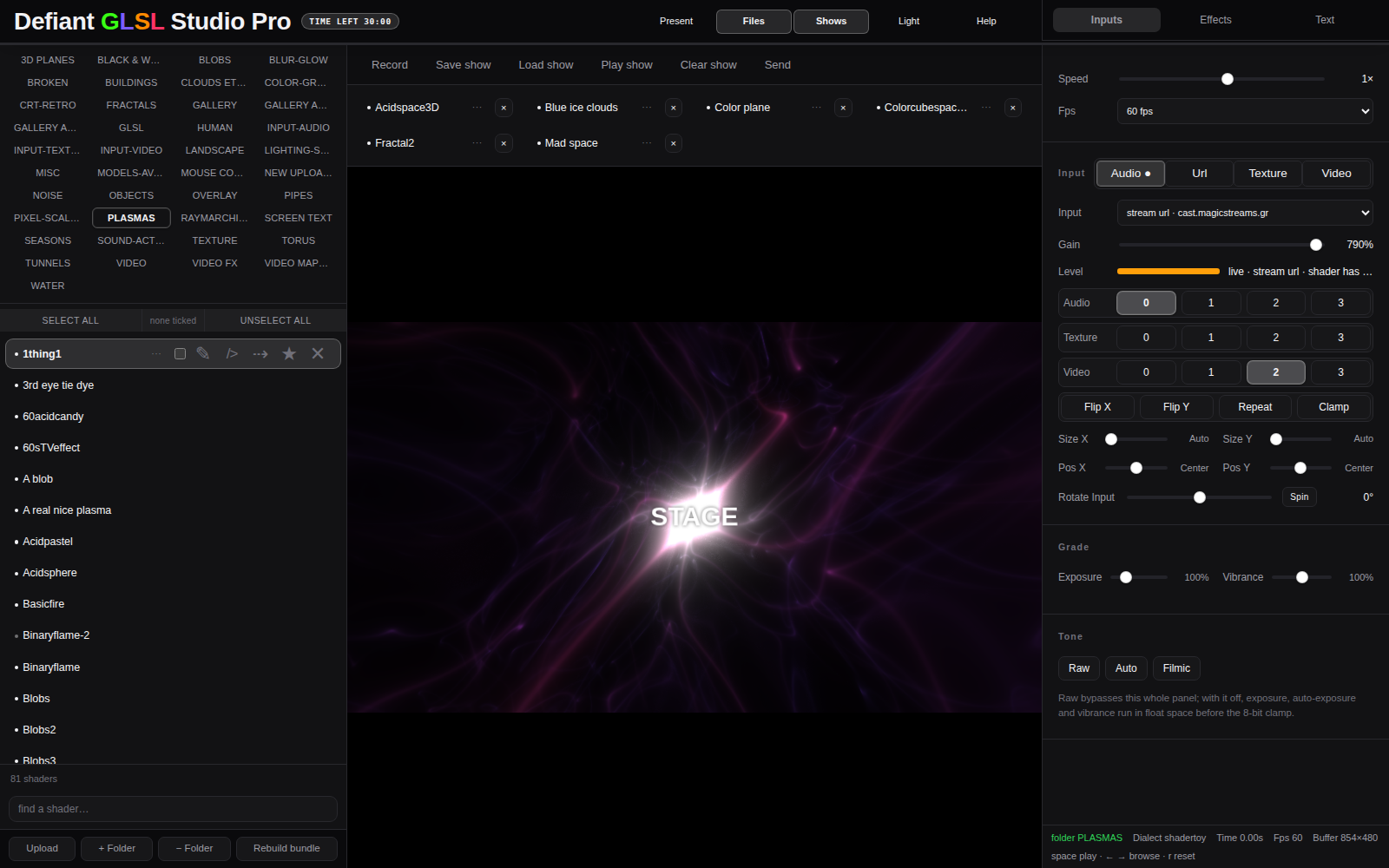
PLASMAS, the
show words and six show buttons, the picture, and the Inputs tab with its status line.| Area | What lives there |
|---|---|
| Strip | The name on the left with a small badge (trial time or plan), then five words — Present, Files, Shows, Light, Help — and, against the right edge, the three tabs: Inputs, Effects, Text. |
| File tree left | A browser over GLSL/
itself: folder chips, the shaders of the folder you are in, one per line, with the row's
tools where you point at them. Opened by the Files word. |
| Show row top middle | Six words — Record, Save show, Load show, Play show, Clear show, Send — over the saved shows, which are buttons with a name, a 3-character tag box and a ×. Folded by the Shows word. |
| Stage middle | The rendered shader, with the text and image overlays on top. It takes every pixel the columns are not using, with no border and no gap. |
| Right quarter right | One tab at a time: Inputs (speed, fps, media routing, grade, tone, status line), Effects (kaleidoscope, mask, particles, post) or Text (overlay, playlist, image). |
3The strip
The strip is a menu of words, not a wall of buttons: they sit quietly on the bar and only the one that is switched on keeps a fill. Left to right:

- Badge — trial minutes left, or your plan when a licence is signed in. When the time runs out the studio locks and the badge turns red.
- Present — the picture alone, full screen. Esc comes back.
- Files — opens and closes the file tree on the left.
- Shows — folds the show words and the saved shows away, and brings them back.
- Light — the theme switch; the label names the theme you are in. The choice is remembered for the next session.
- Help — opens this manual in a new tab.
- Inputs / Effects / Text — the right quarter. On the tab that is showing, off on the others.
| Word | What it does |
|---|---|
| Present | Hides the strip, the tree, the show row and the right quarter, and puts the picture full screen. Esc or the same key comes back. |
| Files | Opens the tree on the left. The viewer grows into the space the column gives up, and a second click hands the space back. |
| Shows | Folds the show words and the saved shows. The strip itself stays, so this word is how you bring them back. |
| Light | Switches the whole studio between the dark and the light theme, down to the panels and the dialogs. |
| Help | Opens this manual. It works in both the served and the
file:// way of running the studio. |
| Inputs | Opens the right column: transport, media routing, grade, tone and the status line. See section 7. |
| Effects | Swaps the column for the effects panel — see section 8. The stage resizes to sit beside it; the panel never covers the picture. |
| Text | Swaps the column for the text and image panel — see section 9. |
4Files & folders
The left column is the folder itself, not a filter. It browses GLSL/ the way a
file manager does: folder chips across the top, the shaders of the folder you are in
underneath, and every action — create, upload, rename, move, edit, delete — carried out on the
real folder through the site.
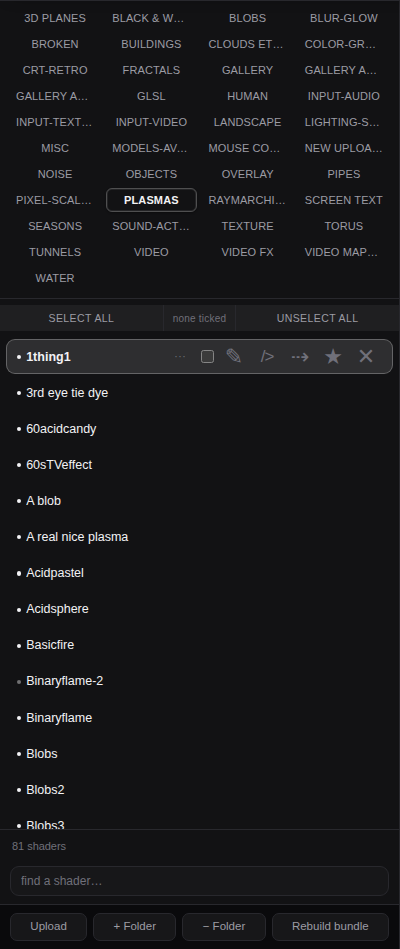
PLASMAS: 81 shaders, the dialect dot in front of every
name, the count at the foot and the file words under it.- Folder chips — one per real subfolder of
GLSL/. Click to go in, click the lit one again to come back out to everything. - Select all / Unselect all — the bar under the chips ticks every shader the list is showing, or clears the ticks again; the count between them says how many are ticked.
- A row — the dialect dot and the name. Click the name to load and play it.
- Row tools — appear on the row you point at or the one that is loaded: the 3-character tag box, the tick, edit source, move, add to show, delete.
- Count — how many shaders are in the folder you are browsing.
- find a shader… — narrows the list as you type.
- Upload, + Folder, − Folder, Rebuild bundle — the words at the foot of the column, because each one changes what the column is showing.
bin/glsl-bundle.js and the actions that would write are
disabled, because there is no server to write through. The column looks and browses the same
either way.
Folders
- Each chip is a real subfolder of
GLSL/. The studio's own storage folders (json/,TEXTURE/,VIDEO/,shows/and the like) are kept out of that row, so it only lists places you would put shaders. - Click a chip to go into it: the list then shows that folder's files only, and the
status line reads
folder name. Click it again to come back out to everything, withall shadersin the status line. - + Folder creates a real folder under
GLSL/and it appears in the row straight away. − Folder removes the folder you are browsing, and only while it is empty. - Right-click a chip for Rename folder… — which carries every file inside it to the new name — and Remove chip, which removes only the shortcut: the folder and its files stay on disk.
- Folders added outside the studio (Finder, Explorer, a git pull) show up when the window regains focus, so a reload is not needed.
The row and its tools
| Part | What it does |
|---|---|
| Dot | The dialect that was detected — see the table below. It is the first thing on every line. |
| Name | Click to load and play the shader. The file's extension is not drawn, so the name reads as the shader's name. |
| Tag box | Three characters per shader, saved in the browser. If they form a number, that number is how many seconds the button plays inside a show; any other text is just a label and the show uses the 10-second default. The tag travels with a button when it is copied into a show. |
| Tick | Marks the file, so Move… takes every ticked file together. Tick state is stored in the browser, not in the file. |
| Edit | Opens the file in the built-in editor, with Save writing it back and recompiling. |
| Move | Lists the subfolders of GLSL/ (plus the top level) so the
file — or every ticked file — can go to another folder. |
| Add to show | Copies the shader onto the end of the current show as a new button, keeping its tag. |
| Delete | Asks first, then deletes the file. |
Dot colours (dialect)
| Green | Shadertoy — the file has a
mainImage(); it gets iTime, iResolution,
iMouse, iChannel0-3 and the rest. |
| Purple | Classic — an ordinary
void main() fragment shader. |
| Amber | CRT — a libretro-style shader
(#pragma parameter, COMPAT_TEXTURE, ruby texture calls). |
| Blue | Audio — the file declares
mainSound(). |
| Grey | Text or empty — nothing shader-shaped was recognised, or the file is blank. |
5Shows
A show is a line-up of shaders with their own settings. Each show button is a full copy of a file's settings — its own name, its own tag, and its own copy of every slider — so a shader can appear twice in one show looking completely different.

- Record — writes the player or the output window to a video file.
- Save show — stores the line-up, with every button's settings, under a name you type.
- Load show — replaces the current line-up with one saved in
GLSL/shows/. - Play show — plays from the first button and stays filled while it runs; pressing it again is the stop.
- Clear show — empties the line-up. The saved copies are untouched.
- Send — pushes the shader in the viewer to the output window, opening that window if it is not already up.
- Show buttons — a name, a tag box with the seconds it runs for, and a × that takes it out of the show.
The show words
| Word | What it does |
|---|---|
| Record | Opens the Record dialog: pick WebM or MP4, then record this window's player or the output window. Pressing it again stops and keeps the file. See section 10. |
| Save show | Writes the whole line-up — order, names, tags and every setting of every button — under a name you type. Typing a name that already exists replaces that show; the dialog marks the existing entry so you can see it will be overwritten. |
| Load show | Lists the shows saved in GLSL/shows/; picking one
replaces the current line-up with it. |
| Play show | Plays the line-up from the first button. It is also the stop, and it is the one word that keeps a fill while a show runs. |
| Clear show | Removes every button from the line-up without touching the shaders or the saved shows. |
| Send | Sends the shader in the viewer to the output window — opening that window first if it is not up. Use it while building a show, or to mirror one shader onto a second screen. While a show runs, every step is sent there too. |
How playback works
- Each button runs for the seconds in its tag box, or 10 seconds when the box holds
nothing numeric. The status line shows
show 3/6 · name · 8swhile it runs. - The line-up loops: after the last button it starts again at the first, until you stop it.
- Every step loads the shader and that button's saved settings, then starts playing it, so two buttons pointing at the same file can look nothing alike.
- On the first press the output window is opened for you if it is not already up, and every step is sent to it, so the second screen follows the show button by button.
- Play show lights up while a show runs. Stopping leaves the current shader loaded but paused.
- Adding or removing buttons while a show plays does not disturb it — the next step simply uses the new line-up.
Show buttons
- Each button has its own tag box: type
12and that button runs twelve seconds. - The small × on the right of a button takes it out of the show. The shader itself is untouched.
- Editing any slider while a show button is selected changes only that button: the settings are stored per button, not per file.
- The row of shows scrolls inside its own band, so forty shows do not push the picture off the screen.
6Viewer & player menu
The viewer takes every pixel the columns are not using, in both directions. The frame keeps its 16:9 shape inside that space, so a tall or narrow window letterboxes rather than stretching the picture.
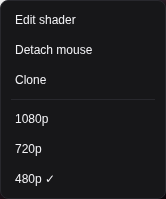
- Edit shader — opens the source of whatever is running, in the built-in editor.
- Detach mouse — lets the pointer reach the page when a shader grabs it; right-click again to reattach.
- Clone — opens the output window that frames the slave player.
- 1080p / 720p / 480p — the resolution the picture is rendered at; the one in use has a tick, and lower is cheaper.
Right-click the picture
| Edit shader | The same editor as Edit on a row: Save writes the file and recompiles, Cancel throws the edit away. |
| Detach mouse | Lets the pointer pass through to the page so the menu is reachable when a shader grabs the mouse. |
| Clone | Opens the output window — a small 16:9 window that frames
slave.html, showing only the player surface. Drag it to another display and
the studio keeps controlling it. |
| 1080p / 720p / 480p | Sets the render size of the picture: the shader is drawn at that resolution and scaled into the window. |
In the viewer
- Double-click the picture to go full screen; double-click or Esc to come back.
- Drop shader files onto the window to load them (a dashed target appears while you drag).
- Shift-scroll over the canvas nudges exposure, the same control as in Inputs → Grade.
- If a shader fails to compile, an error panel rises from the bottom with the compiler log; the previous shader keeps running underneath.
- S shows and hides the source panel under the picture, so you can read the running shader without opening the editor.
7Inputs tab
Transport, media routing, grade and tone over a status line. Everything here is saved per shader, so each shader comes back with the speed, media routing and grade you gave it.
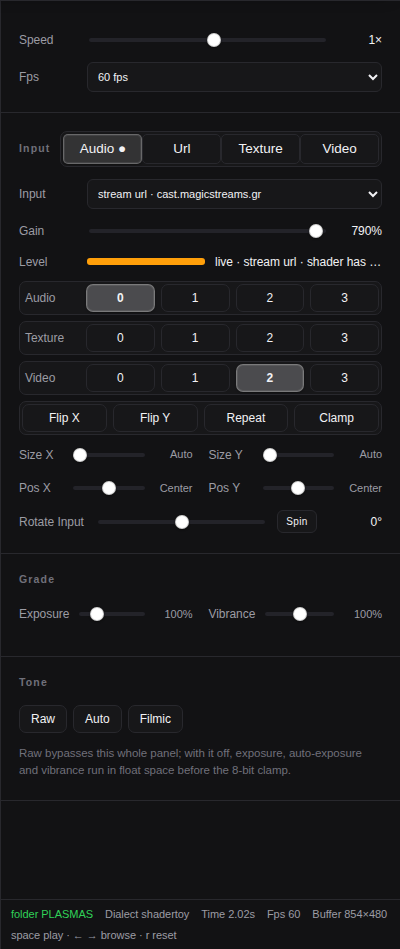
- Speed — playback rate; the centre freezes, negative runs backwards.
- Fps — how often the shader is drawn: 120, 60, 30 or 15.
- Audio / Url / Texture / Video — where the channels get their picture and sound from.
- Input — which capture feeds the audio texture; stream url adds an internet radio stream.
- Gain — amplification into the texture only, never the sound card output.
- Level — the incoming signal as a bar that turns amber near clipping.
- Audio 0 1 2 3, Texture 0 1 2 3, Video 0 1 2 3 — which Shadertoy channels each source is routed to; the lit number is the channel it feeds.
- Flip X, Flip Y, Repeat, Clamp — mirrors the media, tiles it, or clamps it at the edges.
- Size X / Size Y and Pos X / Pos Y — forces a pixel size (Auto keeps the media's own) and slides it inside its frame (double-click the dot for Center).
- Rotate Input with Spin — turns the media, or keeps it turning.
- Exposure, Vibrance — the grade, applied in float before tone mapping.
- Raw, Auto, Filmic — the tone of the picture; Raw shows exactly what the shader computes.
- Status line — folder, dialect, time, fps, buffer size, and the key hints.
Transport
| Speed | Playback rate from -800% to +800%; the centre
is a freeze frame, positive runs forward, negative runs the shader backwards. The value
beside it reads the multiplier. |
| Fps | How often the picture is drawn — 120, 60, 30 or 15 frames a second. The clock keeps its own speed, so a lower rate only makes the motion choppier. |
Input
| Audio | Captures sound into an audio texture. The browser asks what to share — pick a screen or tab and tick Share system audio, or use a loopback device. The Level bar shows what is arriving. |
| Url | Sets an internet radio stream as the audio source; it belongs to the studio, so it survives a shader change. |
| Texture | Picks an image from GLSL/TEXTURE/ and feeds it to
whichever channels are on. |
| Video | The same for a clip from GLSL/VIDEO/, playing live into the
channels. |
| Input | Which capture feeds the audio texture: a loopback device, a microphone, or stream url. |
| Gain | Amplification on the way into the texture only. It never changes the sound card's output or what you hear. |
| Level | The incoming signal, drawn as a bar that turns amber near clipping, with a word for the state beside it. |
| Audio / Texture / Video rows | Four buttons each, 0 to 3: the Shadertoy channels
that source is routed to. A shader that samples iChannel1 wants 1 lit in
the row that is feeding it. |
| Flip X / Flip Y | Mirrors the fed texture or video. |
| Repeat / Clamp | Tiles the media when a shader samples outside 0–1, or pins it to the edge. |
| Size X / Size Y | Forces the fed media to a pixel size; Auto keeps its own, and the word beside the slider says so. |
| Pos X / Pos Y | Slides the media inside its frame. Center beside the slider is its reset. |
| Rotate Input / Spin | Turns the fed media about its centre; Spin makes it turn continuously, with the slider then setting the speed. |
Grade
| Exposure | Linear exposure applied before tone mapping. Shift-scroll on the canvas does the same thing. |
| Vibrance | Chroma gain around a fixed luminance, so colour rises without washing the picture out. |
Tone
| Raw | On by default: shows exactly what the shader computes — no grade, no auto-exposure, no offscreen pass. The note under the row says so. |
| Auto | Meters each frame and adjusts exposure automatically. Ignored while Raw is on. |
| Filmic | Rolls the highlights off instead of clipping them hard. |
Status line
| folder | The folder you are browsing in the tree. |
| dialect | How the running file was classified (shadertoy, classic, crt, audio, text). |
| time | Seconds since the shader started, reset by R. |
| fps | Measured frame rate. |
| buffer | The size the shader is actually rendered at. |
| hints | space play · ← → browse · r reset. |
8Effects tab
Four blocks that run after the shader and before the final grade, so they treat the picture rather than the code. While this panel is out its quarter is reserved and the viewer resizes to sit beside it — the panel never covers the picture. Every control is saved per shader.
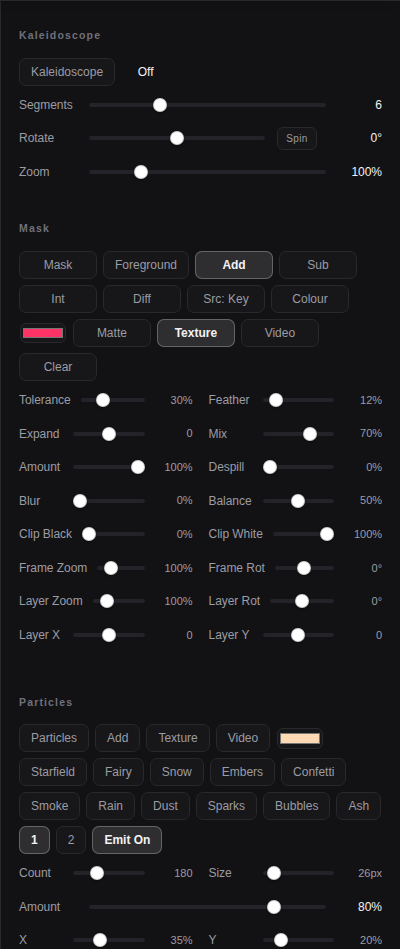
- Kaleidoscope — switches the fold on and off; beside it the value reads off or the segment count.
- Segments — 2–16 mirrored wedges.
- Rotate — turns the fold; Spin turns it continuously and the slider becomes the speed.
- Zoom — the size of the fold inside the frame.
- Mask — switches the colour-key mask on and off.
- Foreground — paints the keyed colour or everything else.
- Add / Sub / Int / Diff — how the mask combines with the picture.
- Src: Key — what builds the matte: keyed colour, alpha or luma.
- Colour — the mask lays down the mask colour or the layer's own pixels.
- Colour swatch — the colour that is keyed out and painted.
- Matte — shows the matte in black and white for judging tolerance.
- Texture / Video / Clear — the layer the mask keys from, and the way to drop it.
- Tolerance … Layer X / Y — the sliders in the table below.
- Particles — the sprite field, its presets and two emitters.
- Post — Bloom, Vignette, Scanlines and Grain.
Kaleidoscope
| Kaleidoscope | Switches the fold on and off; the value beside it says
off or the segment count. |
| Segments | 2–16 mirrored wedges around the centre. Two is a simple
mirror, higher numbers make a flower. |
| Rotate | Turns the fold about the centre. Spin makes it turn continuously, with the slider then setting the speed; its centre stops it. |
| Zoom | 50–300% — how much of the fold fills the frame. |
Mask
A colour-key mask, in the spirit of a broadcast keyer: it takes a colour out of a layer and lays the mask over the frame.
| Mask | Switches the mask on and off. |
| Foreground | Chooses which side is painted: the keyed colour itself (foreground) or everything else. |
| Add / Sub / Int / Diff | How the mask combines with the picture. Add paints the mask colour inside the mask, Sub covers the inside, Int keeps only the inside, Diff flips the frame inside it. |
| Src: Key | Cycles what the matte is built from: the keyed colour, the layer's alpha, or its brightness. |
| Colour | What the mask lays down inside itself: the mask colour, or the picked layer's own pixels. |
| Colour swatch | The colour that is keyed out of the layer and painted by the mask. |
| Matte | Shows the matte itself in black and white, which is how you judge tolerance. |
| Texture / Video | Picks the image or clip the mask keys from. |
| Clear | Drops the picked layer, leaving the mask unkeyed. |
| Tolerance | How far from the key colour still counts as part of the mask. |
| Feather | The width of the edge ramp. |
| Expand | Grows or shrinks the mask without moving its centre. |
| Mix | How much of the mask colour replaces the frame inside the mask. |
| Amount | Strength of the whole mask. |
| Despill | Pulls the key colour's cast out of the frame. |
| Blur | Pre-blurs the layer before keying, so grain in a video matte does not chew holes in it. |
| Balance | Despill compares against the brightest channel (0%) or the average of all three (100%). |
| Clip Black / Clip White | Tightens and hardens the matte: values below the first become transparent, values above the second become solid. |
| Frame Zoom / Frame Rot | Moves and turns the shader frame the mask is laid over. |
| Layer Zoom / Layer Rot | Moves and turns the picked layer before it is keyed. |
| Layer X / Layer Y | Slides the picked layer across and up the frame. |
Particles
| Particles | Switches the sprite field on and off. |
| Add | How the field lands: added light, or laid over the frame. |
| Texture / Video | Sprite for the selected emitter. |
| Colour swatch | Colour of the selected emitter — its tint, and the whole particle when it has no sprite. |
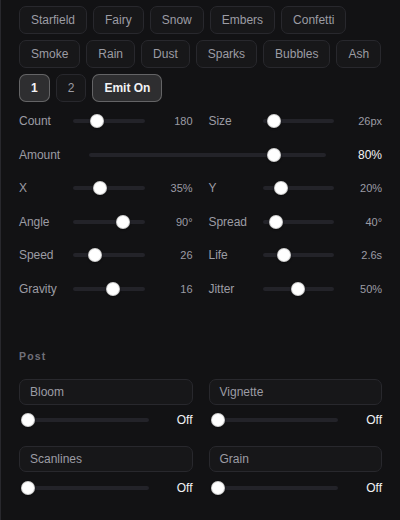
| Starfield, Fairy, Snow, Embers, Confetti, Smoke, Rain, Dust, Sparks, Bubbles, Ash | Whole-field looks. Each one sets count, size, speed, life, gravity, jitter and colour in one press; everything stays editable afterwards. |
| 1 / 2 | Which emitter every slider below belongs to. Each emitter keeps its own settings. |
| Emit On | Switches the selected emitter on or off without losing its settings. |
| Count | How many particles the selected emitter holds. |
| Size | Sprite size in pixels, scaled to the render height, so the look survives a change of resolution. |
| Amount | How strongly this emitter is composited over the frame. |
| X / Y | Emitter position across and up the frame; y = 0 is the bottom. |
| Angle | Direction the emitter throws; 90° is straight up. |
| Spread | Width of the cone around that direction. |
| Speed | Launch speed in percent of the frame height per second. |
| Life | How long a particle lives, in seconds. |
| Gravity / Jitter | How hard the field pulls down, and how much each particle wanders off its path. |
Post
Four looks, two to a row, each with its own amount and an Off / percentage label.
They stack in the order Bloom, Vignette, Scanlines, Grain.
| Bloom | Glow gathered from the brightest parts of the frame. |
| Vignette | Darkens the edges toward the centre. |
| Scanlines | CRT lines — one darkened line every two pixels. |
| Grain | Animated film grain; it freezes while playback is paused. |
9Text & image
The Text tab draws over the picture: a playlist of lines, and an image, both sent to the output window as well. The panel is three blocks — Overlay, Text and Image — and everything in it is saved per shader.
Overlay
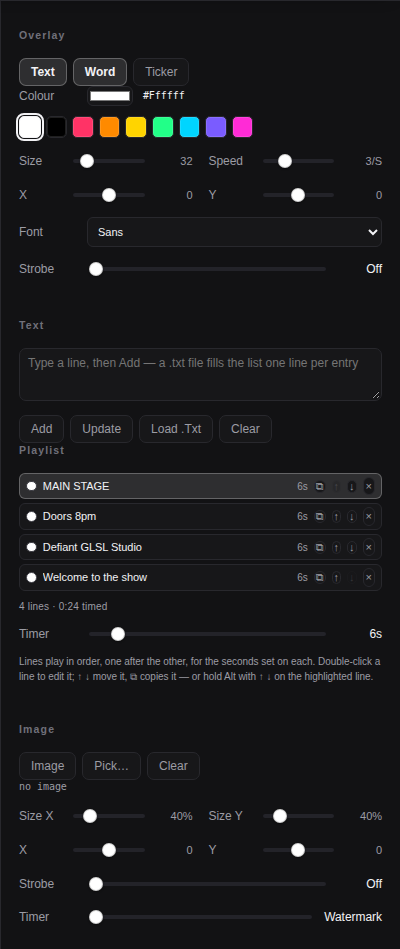
| Text | Switches the overlay on and off, here and in the output window. |
| Word / Ticker | One line at a time, or a tape running across the frame. |
| Colour | The colour of the line being played, with a picker and nine swatches for the usual stage colours. |
| Size / Speed | Font size, and either words per second (Word) or the speed of the tape (Ticker). |
| X / Y | Where the text sits; 0 is the centre, and double-clicking a dot returns to it. |
| Font | Sans, Serif, Mono, Impact, Georgia, Courier, Verdana, Trebuchet or Times — it travels to the output window with the rest of the panel. |
| Strobe | Flashes the text on and off this many times a second; Off
keeps it steady. |
Text
Type into the box and press Add: one line per entry, so a pasted list arrives as a playlist. Update replaces the line you have selected, Load .txt reads a text file into the playlist, and Clear empties it.
Playlist
- Timer — the seconds a line shows before the next one starts. 0 keeps it on screen all the time, like a watermark.
- ↑ ↓ — move a line up or down in the order. The playhead follows the line it was on.
- ⧉ — copies the line in place, which is the quick way to make a variant.
- × — takes the line out of the playlist.
- Double-click a line — opens it for editing: text, seconds and colour, with Save and Cancel. Esc cancels and Ctrl/Cmd+Enter saves.
- Alt + ↑ ↓ — moves the highlighted line while the panel is open, without reaching for the arrows.
- The line under the list — how many lines there are, how long a full pass takes, and how many of them are watermarks (timer 0).
Image
| Image | Shows the picked image over the picture, here and in the output window. |
| Pick… / Clear | Chooses a logo or an advert from this computer, or drops it. |
| Size X / Size Y | The image's size as a percentage of the frame. |
| X / Y | Where it sits; double-click a dot for the centre. |
| Strobe | Flashes the image on and off this many times a second. |
| Timer | How long the image stays up. Watermark pins it there for
good. |
10Record & present
Record in the show row turns the studio's own output into a file, and Present in the strip gives the picture the whole screen. Neither needs any other software.
Record
| WebM | VP9, software encoding — works on every machine. The default. |
| MP4 | H.264, which needs a hardware encoder on this machine; the dialog says so when it is not available. |
| Player in this window | Records the picture as it is framed here, overlays included. |
| Slave window | Records the output window instead, at its own size. |
Recording starts straight away and the word stays filled while it runs. Press Record again to stop; the browser saves the file with its own download prompt. The strip and the panels are never part of a recording.
Present
- Present hides the strip, the tree, the show row and the right quarter, and puts the picture full screen.
- Esc comes back. So does clicking Present again if it is reachable.
- Everything keeps running while it is up: shows, text, particles and the output window.
11Dialogs
Every dialog closes with Cancel or Esc and confirms with its main button or Enter. The note under the field explains what will happen before you commit.
| Dialog | Fields |
|---|---|
| Save show | Name box plus the list of shows already saved; the one matching your name is marked, because saving will replace it. |
| Load show | The saved shows, newest first. Picking one replaces the current line-up. |
| New folder | Name box for the new folder inside GLSL/. |
| Rename | New name, with the extension shown separately so it cannot be changed by accident. |
| Delete | The exact path is spelled out before anything is removed, with a reminder when several files are ticked. |
| Move | Every subfolder of GLSL/ — and the top level — as a list.
With several files ticked it moves the whole set. |
| Upload | Three kinds — texture, video, glsl script — each writing into its own folder. |
| Texture / Video | The media list with a thumbnail per entry; Stop drops the running clip. |
| Stream URL | An address for an audio stream, offered as an input device. |
| Record | WebM or MP4, then the player in this window or the output window. See section 10. |
| Edit a playlist line | The line's text, its seconds and its colour, with Save and Cancel. Ctrl/Cmd+Enter saves. |
| Source editor | The shader text with Save (writes and recompiles) and Cancel. Press Tab to keep indentation. |
12Where things are stored
| What | Where |
|---|---|
| Shaders | GLSL/, one file per shader, any depth of subfolder. |
| Media | GLSL/TEXTURE/, GLSL/VIDEO/ and their
lower-case twins, for the images and clips the channels and the effects use. |
| Shows | GLSL/shows/, one file per saved show; the show you are
working on lives with the settings below. |
| Per-shader settings | Inside GLSL/json/, one JSON file per shader
named after its folder and file, so settings survive a reload and travel with the
folder. |
| Tags, ticks, theme, playlist | The browser's own storage
(localStorage), so they belong to that browser rather than to the folder. |
| The shader index | GLSL/manifest.php answers the file tree with a
folder's names, sizes and dialect as JSON. It caches the answer in GLSL/.index/
and rebuilds it whenever the folder changes, so a new folder needs nothing added to it and a
folder of 10,000 shaders costs the same one request as a folder of ten. |
| Embedded shader copy | bin/glsl-bundle.js — the copy the studio
reads when it is opened from disk. Rebuild it with Rebuild bundle in the tree, or by
opening bin/build-bundle.php in a browser; the served site reads
GLSL/ directly and never needs it. |
13Keys & mouse
| Input | Does |
|---|---|
| space | Play or pause the shader. |
| ← → | Previous / next shader in the folder you are browsing. |
| r | Reset the clock to zero. |
| s | Show or hide the source panel under the picture. |
| Esc | Close a dialog, leave full screen, or come back from Present. |
| Alt + ↑ ↓ | Move the highlighted playlist line while the Text tab is open. |
| Double-click a playlist line | Edit its text, seconds and colour. |
| Double-click the picture | Full screen on and off. |
| Right-click the picture | The player menu: edit shader, detach, clone, render size. |
| Right-click a shader or a folder chip | The file menu (rename, edit source, move, add to show, delete) or the folder menu (rename folder, remove chip). |
| Shift-scroll on the picture | Exposure. |
| Double-click a slider dot | Returns that control to its centre or its default. |
Keys are ignored while you are typing in a field, so a name or a shader edit never triggers playback.
14Troubleshooting
| Symptom | What it means |
|---|---|
| The picture is black | The browser has no WebGL2, the shader is paused, or the Render size is too low for that shader. Press space, then check the status line. |
| “Uploads need the local launcher” | The studio is open from disk. Open it from the site or with one of the launchers to write files into the project. |
| Nothing appears in the file list | Served: GLSL/ is empty, or you
are inside a folder that holds no shaders — click the chip again to go back out. From disk:
rebuild bin/glsl-bundle.js. |
| Settings look empty for one shader | That shader has no saved JSON yet; it starts from the defaults. |
| “Shader did not compile” | The error panel lists the compiler log. The previous shader keeps playing; fix the source from Edit shader. |
| No sound reaching the shader | Browsers mute audio until the page is clicked, and the capture must include system audio, or come from a loopback device. Check the Level bar in Inputs. |
| The text does not appear | Text in the Overlay block must be on, and the playlist must hold at least one line. |
| Show will not start | The line-up is empty — add buttons with Add to show from the tree first. |
| Playback is heavy | Drop Fps in Inputs, or the render size in the player menu, to 720p or 480p. |
| Recording saves nothing | Some browsers refuse a capture while another one is running; stop the other recording, or pick WebM instead of MP4. |
Verifying a copy of the project
sh bin/check-platforms.sh (or
powershell -File bin\check-platforms.ps1) confirms that every platform's server
binary is present, executable and matches the SHA-256 recorded in
bin/server/LICENSES.md.